 Download
 Facebook
 Twitter
 Google+
Main Features
Translate text
Translate text in language A to language B and vice versa. You can use one of the following methods:
-
Using textbox and keyword
deeplon Alfred's GUI - Using textbox and fallback search on Alfred's GUI
-
Using system clipboard and keyword
deepl-clipon Alfred's GUI - Using user-defined hotkey (→text currently selected in front-most app will be submitted)
Rewrite text
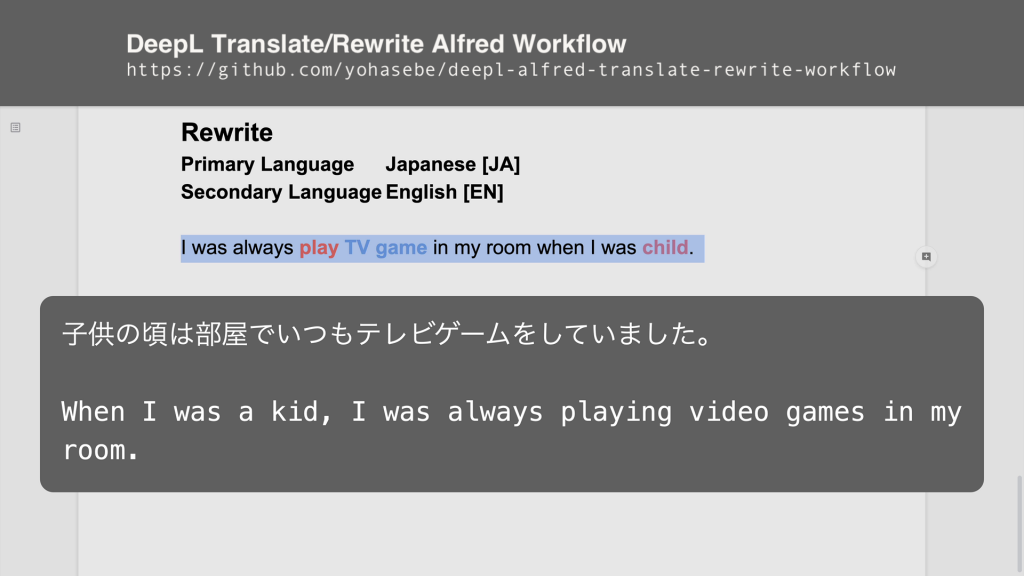
Rewrite text in one language by translating it to the other language and translating the resulting text back to the original language again. You can use one of the following methods:
-
Using textbox and keyword
deeplwith⌥key pressed on Alfred's GUI -
Using system clipboard and keyword
deepl-clipwith⌥key pressed on Alfred's GUI - Using user-defined hotkey (→ text currently selected in front-most app will be submitted)
Monitor Usage
You can check how much text characters) you have translated so far in the current billing period, as well as the limits you set on DeepL Setting Page. You can use the following method:
-
Using Alfred keyword
deepl-usage
Requirements
To use this Alfred workflow, you need a DeepL developer API account to unlock its paid API service. You can create a developer API account at the following URL.
https://www.deepl.com/pro#developer
Note: DeepL API is only available for DeepL developer API accounts. It is unavailable (at the time of this writing) for regular individual DeepL accounts.
Setting Up
Before you start using this Alfred workflow, you must set values to the following variables (use [$x$] button in Alfred's Workflow Setting Panel):
Mandatory Variables
| Variable | Explanation |
|---|---|
authkey |
authentication key for DeepL API |
primary_lang |
sets the primary language (usually your native language) |
secondary_lang |
sets the secondary language (usually the language you use DeepL for) |
Available Languages
| Code | Language |
|---|---|
DE |
German |
EN |
English |
FR |
French |
IT |
Italian |
JA |
Japanese |
ES |
Spanish |
NL |
Dutch |
PL |
Polish |
PT |
Portuguese |
RU |
Russian |
ZH |
Chinese |
What are primary and secondary languages?
Basically, this workflow translates/rewrites text in both languages. As long as the text is written in either of the two languages, you don't need to specify which one you are dealing with, since DeepL can automatically detect the language of input text.
Yet, if you are a speaker of the Japanese
language, for instance, and you would like
to use the DeepL API to translate English
text to Japanese or to refine your English
compositions using DeepL, you want to set
primary_lang to
JA and
secondary_lang to
EN for the following reason.
This workflow automatically has DeepL
detect the language of a given text only
if the text is not in the language set to
secondary_lang so that it can
properly translate the text to
primary_lang instead. Thus
the process of translating from
secondary_lang to
primary_lang is always a bit
faster than the other way around.
Options
In addition to the above variables, users can also modify values to the following DeepL API parameters. See DeepL API for details.
Optional DeepL Variables
| Variable | Explanation |
|---|---|
formality |
sets "whether the translated text should lean towards formal or informal language" |
split_sentences |
sets "whether the translation engine should first split the input into sentences" |
preserve_formatting
|
sets "whether the translation engine should respect the original formatting" |
Do not enable this option if you use
either ES (Spanish),
JA (Japanese),
ZH (Chinese), or
EN (English) since it does
not work in these languages at the moment)
Utility Variables
There are a couple of additional parameters you can set to make the workflow more useful for you.
| Variable | Explanation |
|---|---|
use_largetype |
uses Alfred's large type functionality |
max_characters |
sets maximum number of characters accepted at a time |
ja_text_width |
sets width of translated text when
secondary_lang is set
to JA (Japanese)
|
sound |
rings a chime when finished |
With use_largetype disabled,
the workflow creates/updates a text file
in the home directory
(~/deepl-translate-rewrite-latest.txt)
and opens it in the default text editing
app.
Disclaimer
DeepL's API account for developers is a paid service. When The user is charged proportionally for the amount of text processed via DeepL API. The author of this workflow takes no responsibility for any damage that may result from using this software.